
Progress bar not showing?
Updated
If the progress bar doesn’t appear, or gifts aren’t added to the cart, go through these checks in order. Most problems are solved by the first two.
1. Is the app embed on in your live theme?
The app embed shows the progress bar and adds gifts. Nothing appears in your store without it.
- Go to Online Store → Themes and click Customize on your live theme (the one marked Current theme).
- Click the App embeds icon in the left sidebar.
- Check that Auto Discount is on, then click Save.
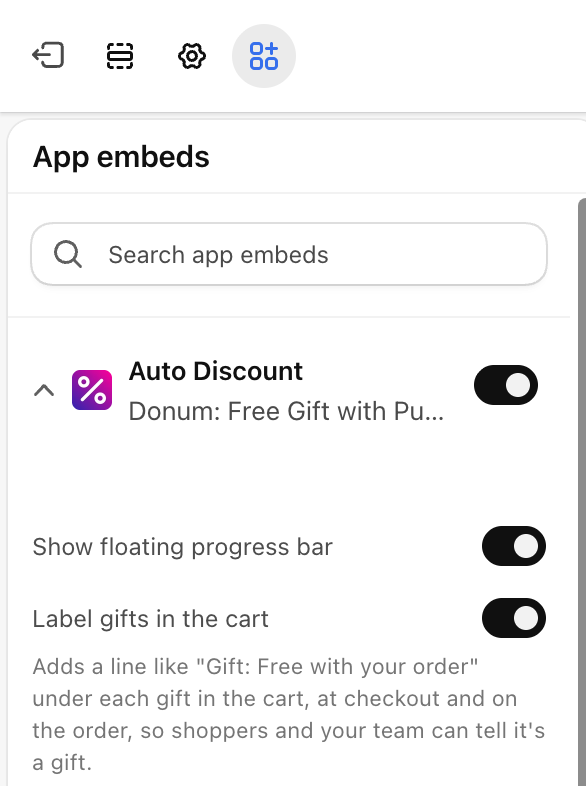
A common mix-up is turning it on in a copy of the theme, or forgetting to click Save. The app’s Setup guide and Widgets page show whether the embed is on in your live theme. If they say Can’t detect, check it in the theme editor directly.
2. Is the campaign running?
In the app, open Campaigns and check the campaign:
- Status should be Active. Scheduled means it hasn’t started yet, and Expired means its end date has passed.
- The Enabled switch should be on.
- On the Free plan, only one campaign runs at a time. The others are paused, not deleted, and resume when you upgrade to Pro.
3. Is the progress bar turned on for this campaign?
Open the campaign and scroll to Storefront display. Check that Show progress bar on the storefront is on.
If you run several campaigns, you may have hidden the bar for some on purpose. Gifts are still added automatically when the bar is hidden.
4. Does the cart qualify?
- Eligible products: if the campaign only applies to some products (a collection, a tag or a vendor), only those count. Add one of them to test.
- Sold-out gifts: gifts that are out of stock aren’t added, and the progress bar doesn’t mention them. If every gift in the campaign is sold out, the bar doesn’t show at all. The campaign list marks these with Gift sold out.
5. The bar shows on other pages but not in the cart drawer
The app finds most themes’ cart drawers by itself and puts the bar under the drawer’s header. If your theme’s drawer isn’t detected:
- In the theme editor, open App embeds → Auto Discount.
- In Cart drawer insert position (CSS selector), enter the element the bar should go after.
- Click Save.
Not sure what to enter? While in the theme editor, open Sidekick and ask: “Set the cart drawer insert position for the Auto Discount app embed.” Or email us your store address and we’ll find it for you.
6. The bar isn’t on the cart page
The cart page needs the Cart progress bar block. Open the cart page in the theme editor, click Add block, choose Cart progress bar under Apps, and save.
If you can’t add app blocks to your cart page, your theme may be an older (vintage) theme that doesn’t support them. The floating bar and the cart drawer bar still work.
7. A gift is added, but the cart doesn’t update
If the cart drawer or the cart count only updates after a page reload:
- In the theme editor, open App embeds → Auto Discount.
- Set Cart refresh after gifts change to Partial refresh and save. This updates only the cart, without reloading the page.
- If that doesn’t help, choose Reload page.
8. The floating bar disappeared
- The floating bar hides itself while the cart’s own progress bar is on screen, so shoppers don’t see two.
- Shoppers can minimize it to a small round icon. Clicking the icon opens it again.
- Check that Show floating progress bar is on in the app embed settings.
- If it’s hidden behind a chat button or a sticky bar, increase Distance from edge, or change Floating bar position.
Still stuck?
Open your store with the preview link (Preview or View on store in the app’s campaign list) and click Something’s wrong in the bar at the top. The report includes your theme, your cart and what the app tried to do, so you don’t need to describe the technical details. If your theme needs something different, we’ll fix it on our side. We usually reply within 1 hour, and always within 24 hours.
You can also email support@donum.studio with your store address and your theme’s name.