
Give a free gift with a discount code
Updated
Any campaign can apply only when shoppers enter a discount code you choose. Use it for codes you give to influencers or send by email or SMS. It works with every campaign type and on every plan, including Free.
Set it up
- Create a campaign and pick its type.
- Under Method, choose When a customer enters a discount code.
- In Discount code, type your code, or click Generate for a random one. Codes can’t contain spaces. They also have to be new: a code you already use for another discount in your store can’t be reused.
- Optional: tick Limit the total number of uses and enter the Total uses, or tick Limit to one use per customer. Shopify checks one use per customer at checkout, using the customer’s email or account.
- Set up the rest of the campaign as usual, then click Save.
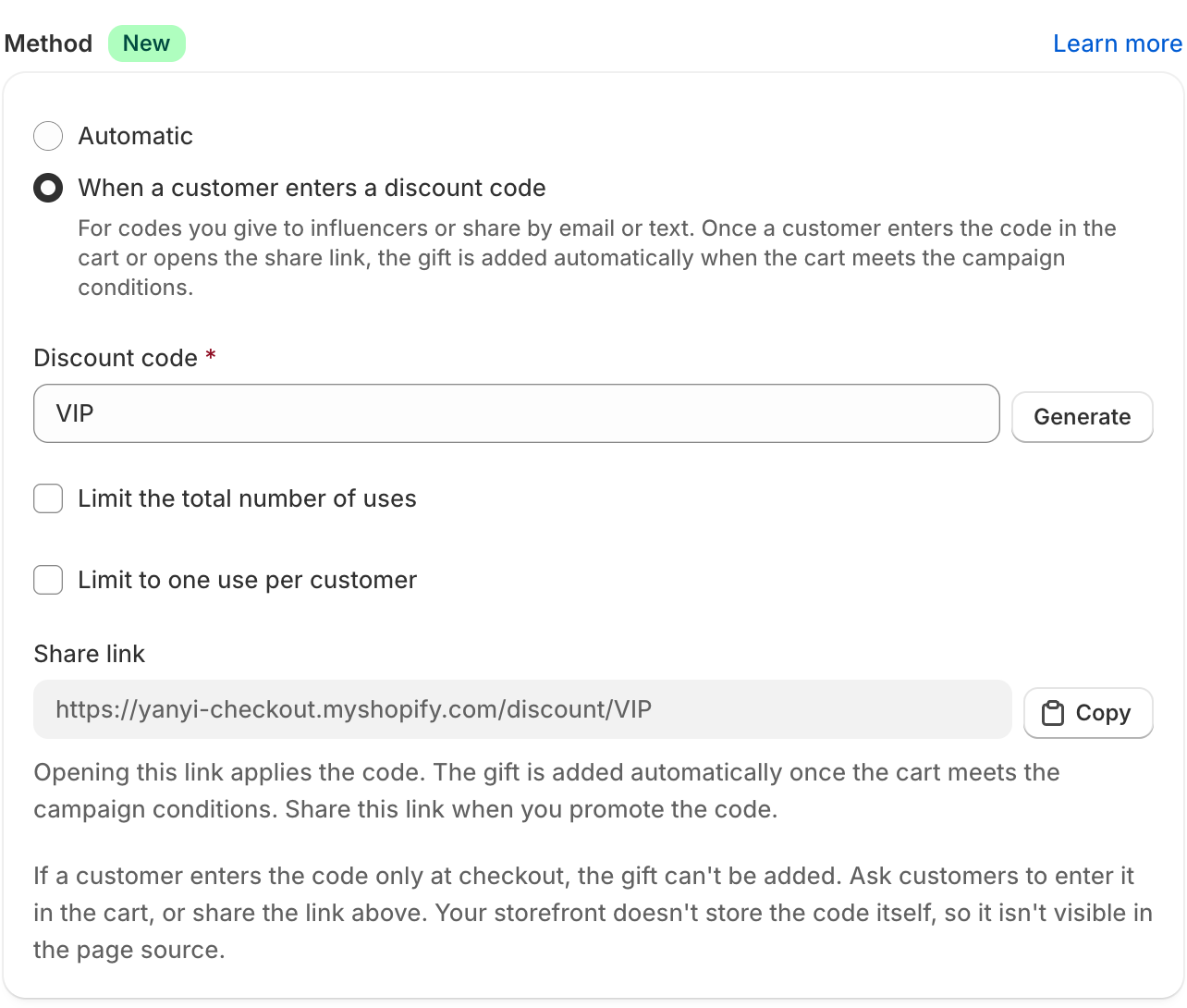
The campaign is saved as a Shopify discount code, so it also appears in Discounts in your Shopify admin. The campaign list shows its code, for example Code: VIP.
Method can only be chosen when you create a campaign. Later you can still change the code and its limits. To switch a campaign between Automatic and a discount code, create a new campaign.
What shoppers see
Once the code is in the shopper’s cart:
- Gifts are added automatically as soon as the cart meets the campaign’s conditions, and the progress bar shows what to add next.
- Product page offers include the campaign, if you turned on Show in the product page offer block.
- If the shopper removes the code, the gift is removed from the cart and the campaign stops showing.
Before the code is entered, the campaign stays hidden: shoppers don’t see its progress bar or product page offers. A countdown only shows the campaign if you enter its ID in the countdown block.
Your store doesn’t keep the code itself, so it isn’t visible in the page source. A code you give to one creator stays private.
Share the code with a link
Below the code, the editor shows a Share link, like https://your-store.com/discount/VIP. Click Copy to copy it. The link works once you’ve saved the campaign.
Opening the link applies the code to the shopper’s cart and shows your home page. To send shoppers to a specific page instead, add ?redirect= and the page’s path:
https://your-store.com/discount/VIP?redirect=/collections/summerLinks are the easiest way to share a code. Shoppers don’t type anything, and the code is in the cart before they reach checkout. Use them in bios, email buttons, SMS messages and QR codes.
Codes entered only at checkout
On most Shopify plans, products can’t be added to the cart at checkout. If a shopper enters the code only at checkout, gifts can’t be added, and Shopify says the code doesn’t apply to the items in the cart. Discounts like “10% off” still apply at checkout. Only gifts need the code in the cart first.
So when you share the code as text, say “Enter VIP in your cart” rather than “at checkout”, or share the link instead.
No code box in your cart?
Some themes, such as Dawn and the free Shopify themes built on it, don’t have a discount code box in the cart, so shoppers can only type the code at checkout. If your code is already printed, for example on flyers or packaging, and a link isn’t an option, you can add a code box to your cart page:
- In your Shopify admin, go to Online Store > Themes and click Customize.
- At the top of the theme editor, switch to the Cart page.
- Click Add section between the cart items and the subtotal, and choose Custom Liquid.
- Paste the code below into the Liquid field.
- Set the section’s top and bottom padding to 0, and click Save.
<div class="page-width" style="display:flex;justify-content:flex-end">
  <form style="display:flex;gap:1rem;width:100%;max-width:35rem" onsubmit="var c=this.code.value.trim();if(c){location.href='/discount/'+encodeURIComponent(c)+'?redirect=/cart'}return false">
    <div class="field" style="flex:1"><input class="field__input" id="cart-code" name="code" placeholder="Discount code" autocomplete="off"><label class="field__label" for="cart-code">Discount code</label></div>
    <button type="submit" class="button button--secondary">Apply</button>
  </form>
</div>
To show the box in your store’s language, change both Discount code texts and Apply. If the button colors don’t match the rest of your cart, choose the same Color scheme for the new section as your cart sections use.
When a shopper enters the code and clicks Apply, the cart page reloads with the code applied, and the gift is added as soon as the cart meets the conditions. The code box is styled for Dawn and themes built on it. In other themes it still works, but you may want to adjust its look.
Test before you share
Click Save as test, then click Preview next to the campaign in the campaign list to open your store. In the same browser, enter the code in the cart or open the share link. Test campaigns work only in browsers opened with the preview link, until you click Go live. See Getting started for more on testing.
A shopper didn’t get the gift?
Go through these checks:
- The code was entered only at checkout. See Codes entered only at checkout.
- The cart doesn’t meet the conditions yet. The progress bar in the cart shows how much more the shopper needs.
- The code has been used up. If you set Total uses or Limit to one use per customer, Shopify stops accepting the code once the limit is reached.
- Another discount doesn’t combine with it. If the shopper also used another code that can’t be combined with this one, Shopify applies only one. See Why isn’t my discount combining?
- The campaign isn’t active. Check its status in the campaign list. A scheduled campaign starts at its start time.
- The app embed is off. Gifts are added by the app embed. See Progress bar not showing?