
Shopify app
Set it up early. It goes live on time.
Show, hide or change any theme section or block at the times you set, for all markets or just one. Launch a sale at midnight without staying up for it.
Want to try it before it's listed? Email support@donum.studio.
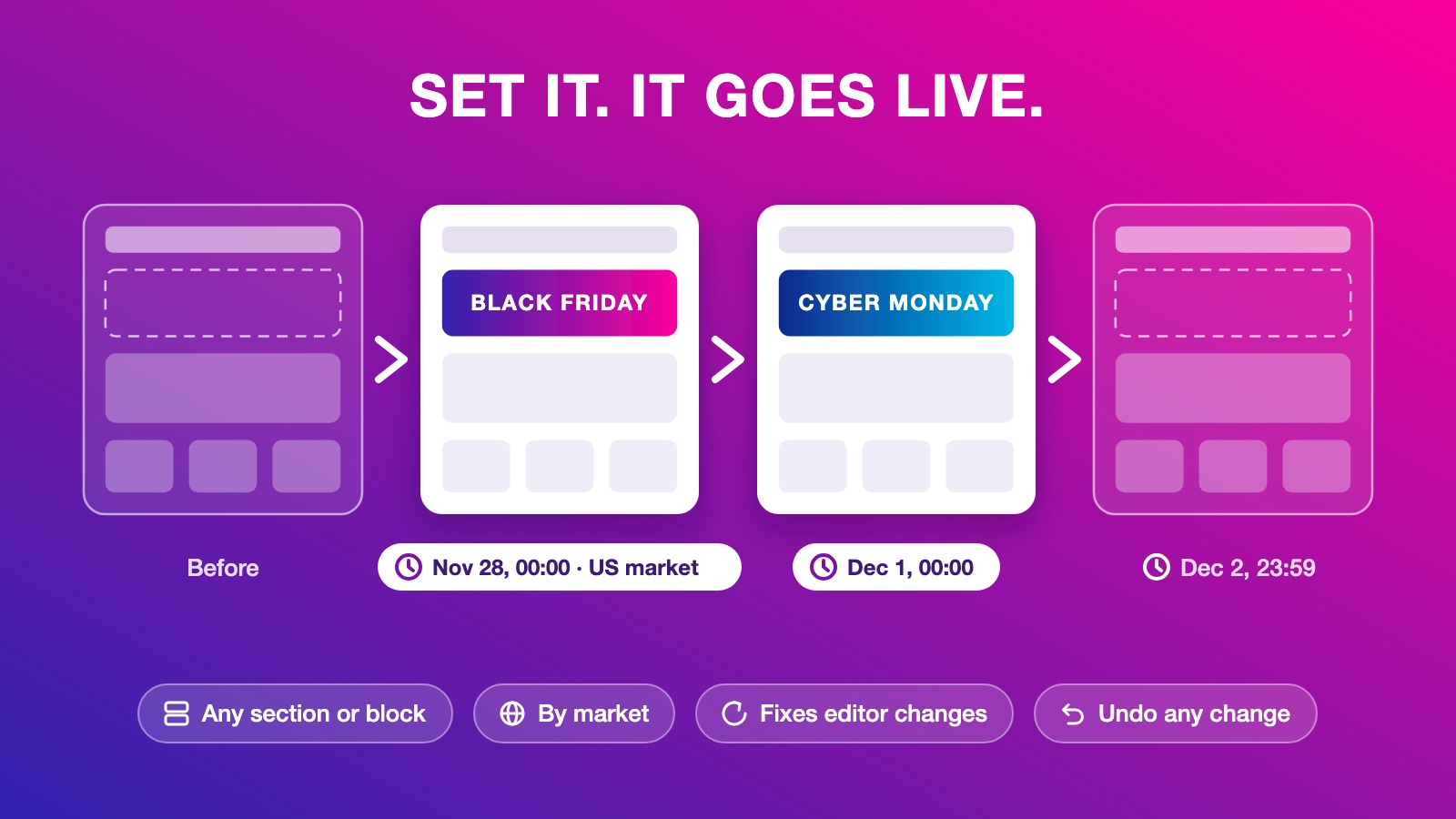
Schedule any part of your theme
Sale banners, holiday announcements, countdowns, launch pages: set them up ahead of time in one campaign, with a start and an end.
Show or hide any section or block
On any page, in the header or the footer. Pick the page and the section in the app, no handles or IDs to copy.
Change content for each time slotPro
Headings, images, links and countdown dates can change at set times, then go back to the default when the campaign ends. No duplicate sections.
Schedule for a single marketPro
Show a promotion only in the market it's for. Other markets keep the page as it is.
Alerts with Shopify Flow
Get an email or a Slack message when a scheduled change fails, or when a campaign starts or ends.
Built to run on time
A scheduled change only helps if it actually happens. These are included on every plan.
On time, in your store's time zone
Changes run on our servers at the time you set, in the time zone from your Shopify settings. Your computer doesn't need to be on.
Editor changes get fixed
While a campaign runs, the app checks your theme every few minutes. If someone saves the section back in the theme editor, the next check puts your schedule back.
Only what you scheduled
Each change re-reads the theme file right before writing and touches only the sections and settings in your campaign. Everything else in the file stays as you left it.
Undo any change
Every run is listed on the campaign page with what changed. Undo puts the theme file back the way it was, and you can pause a campaign or end it early.
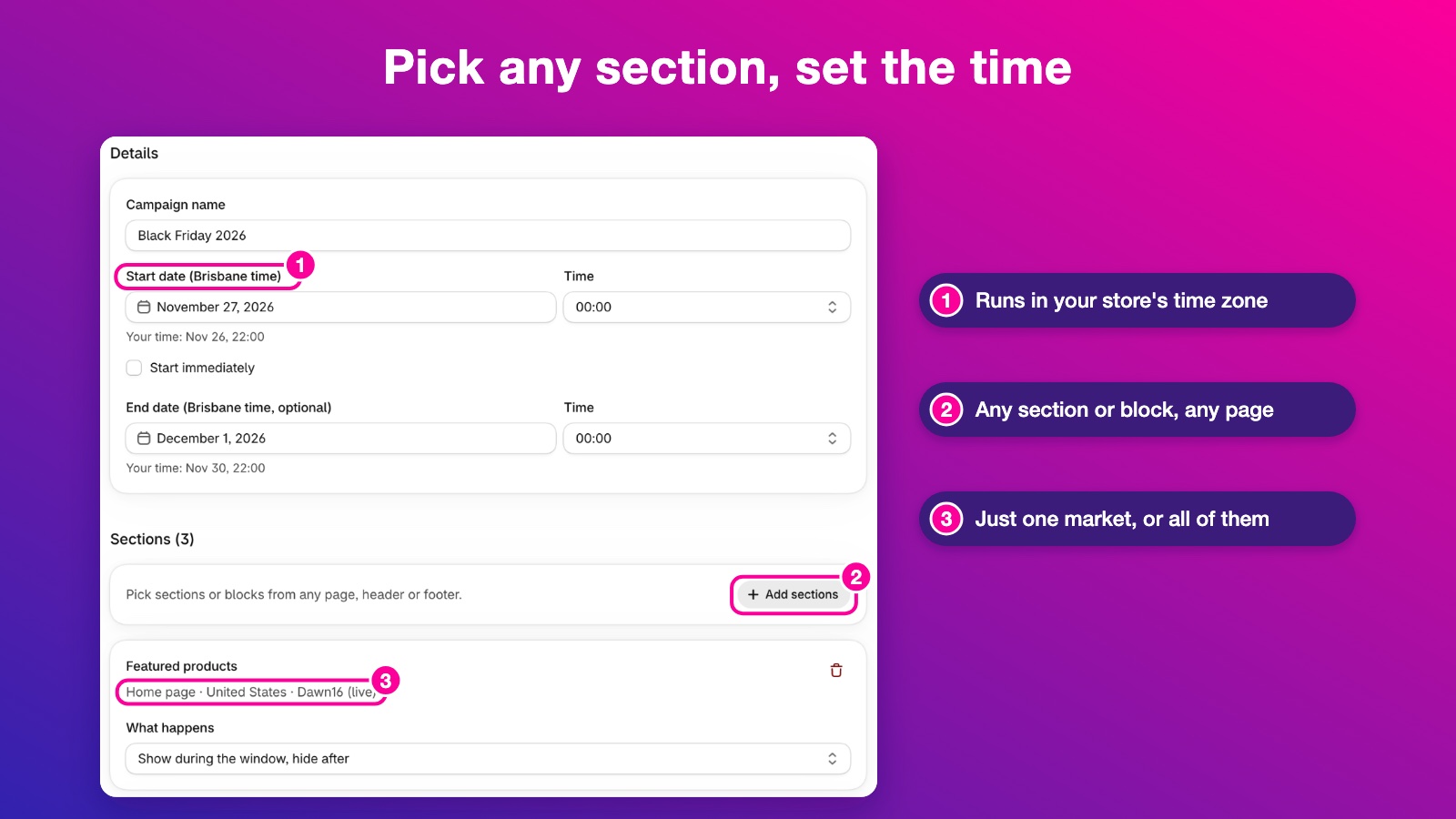
Pick any section, set the time
Choose a theme and a page, tick the sections and blocks you want, and decide what happens: hide them during the campaign, or show them only while it runs. Times are in your store's time zone.
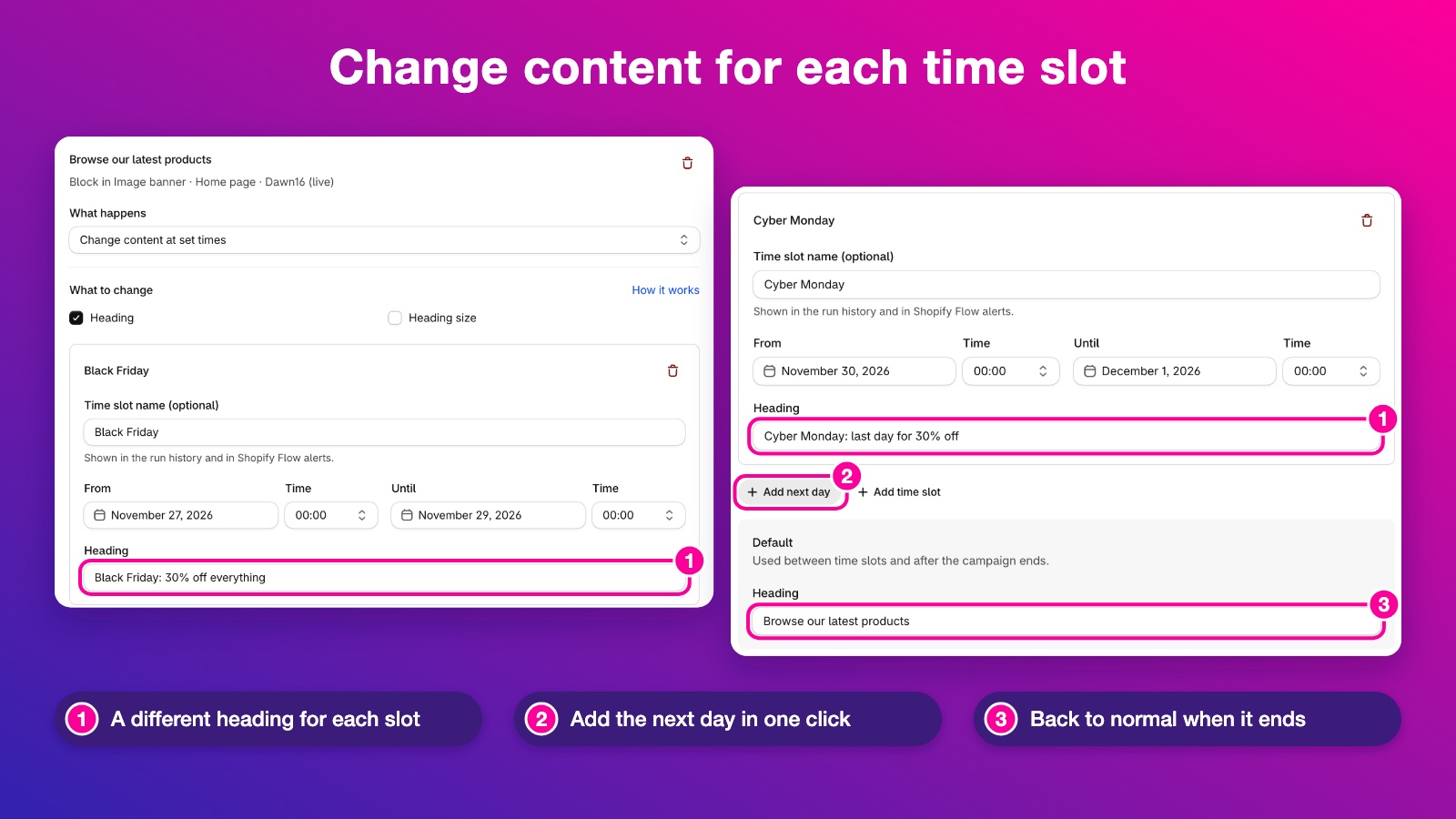
Change content for each time slot
Give each time slot its own heading, image or link, and add the next day's slot in one click. When the campaign ends, the section goes back to its default content.
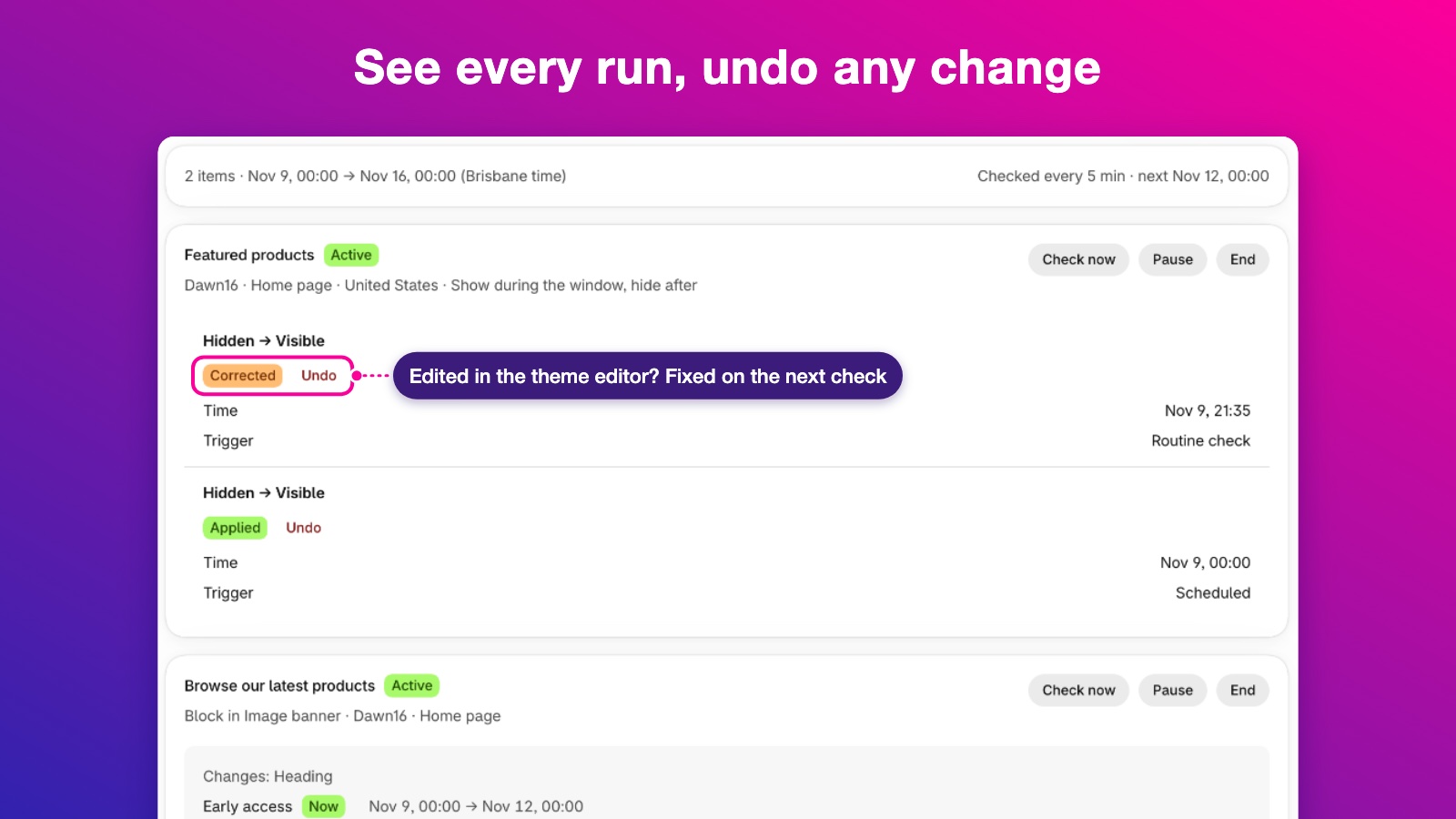
See every run, undo any change
The campaign page lists each change the app made and when. Runs that fixed an edit from the theme editor are marked, and any change can be undone.
Live in a few minutes
- 1
Install the app
Start on the Free plan. Works with any Online Store 2.0 theme, published or not.
- 2
Create a campaign
Name it and set the start and end time, or start it right away.
- 3
Add sections
Pick a page, tick sections or blocks, and choose whether to show, hide or change them.
- 4
Save
That's it. The app makes the change on time and keeps checking until the campaign ends.
Pricing
Free
$0 forever
Everything you need for one campaign
- ✓1 campaign at a time
- ✓Unlimited sections and blocks
- ✓Show or hide any section or block
- ✓Runs on time in your store's time zone
- ✓Fixes changes made in the theme editor
- ✓Undo any change, pause or end early
- ✓Alerts and automations with Shopify Flow
Pro
$14.99 per month
Or $119 per year. Includes a 14-day free trial
- ✓Everything in Free
- ✓Unlimited campaigns at the same time
- ✓Change content for each time slot
- ✓Schedule for a single market
FAQ
Does it edit my theme code?
No code is added. The app changes the same things you'd change in the theme editor: whether a section or block is shown, and the settings you schedule. There's no app embed or script to install, and nothing to clean up if you uninstall.
Can I try it on a copy of my theme first?
Yes. A campaign can target any theme in your store, published or not. Duplicate your theme, schedule changes on the copy, and use the theme's Preview to check each one.
What happens if someone edits the section during a campaign?
While a campaign runs, the app checks your theme every few minutes. If the section was changed back in the theme editor, the next check corrects it and the run is marked on the campaign page. You can also click Check now.
Which time zone is used?
Your store's time zone from Shopify settings. If your browser is in a different time zone, the app shows your local time under each date so you can double-check.
How does scheduling for a market work?
On Pro, choose a region market when you add sections. The change applies only to that market: the app writes the market's own version of the template, the same file Shopify uses when you customize a page for one market in the theme editor.
What can I change with content scheduling?
Text, rich text, images, links, products, collections, colors, numbers, checkboxes and dropdowns in your theme's section and block settings. Set a value for each time slot and a default for when the campaign ends.
What if a change fails?
The app retries on its own. If it still can't make the change, the campaign page shows what went wrong and how to fix it, and you can get an alert through Shopify Flow.
What happens if I downgrade or uninstall?
If you move from Pro to Free, campaigns you already set up keep running until they end; you just can't create new ones over the limit. If you uninstall, the app stops making changes and your theme stays as it is at that moment, so end your campaigns first if you want everything back to normal.
How do I get help?
Email support@donum.studio. We usually reply within 1 hour, and always within 24 hours, and we're happy to set up your first campaign with you.
Setting up or troubleshooting? Read the step-by-step guides.
See how we handle your data in the privacy policy.