
Getting started
Updated
This guide takes you from installing Donum: Free Gift with Purchase to a working campaign in your store. You’ll need about 10 minutes.
The app’s Home page has a Setup guide with the same steps. It ticks each one off as you go.
1. Create a campaign
- Open the app from Apps in your Shopify admin.
- On the Home page, under Create a campaign, pick a campaign type. They’re in two groups:
- Gifts and add-ons: Free gift with purchase, Buy A get B, Purchase with purchase (Pro).
- Discounts and free shipping: Cart goals, Volume discount, Buy X get Y, Spend and save.
- Fill in the condition and the reward. For a free gift, that’s the amount to spend and the product to give away.
- Enter a Campaign name. Shoppers see it at checkout, and it’s the name of the discount in your Shopify Discounts list.
- Under Active dates, choose when the campaign starts. To end it automatically, click Set end date.
- Click Save as test to try it privately first, or Save to make it live right away.
You can’t change a campaign’s type after creating it. To switch, create a new campaign and delete the old one.
Prefer to describe it?
If you use Shopify Sidekick, open it and turn on Donum: Free Gift with Purchase in its app settings. Then send something like:
Use Donum: Free Gift with Purchase to create a campaign: free tote bag on orders over $100
If Sidekick isn’t sure whether you mean the app or a regular Shopify discount, it asks you, and remembers your choice. Sidekick opens the campaign in the app so you can check it before saving. See Create and edit campaigns with Shopify Sidekick for more examples.
2. Turn on the app embed
The app embed adds gifts to the cart automatically and shows the progress bar. Without it, shoppers won’t see anything in your store.
- In the app’s Setup guide, click Open theme editor next to Turn on the Auto Discount app embed. Or go to Online Store → Themes → Customize and click the App embeds icon in the left sidebar.
- Turn on Auto Discount.
- Click Save in the top right of the theme editor.
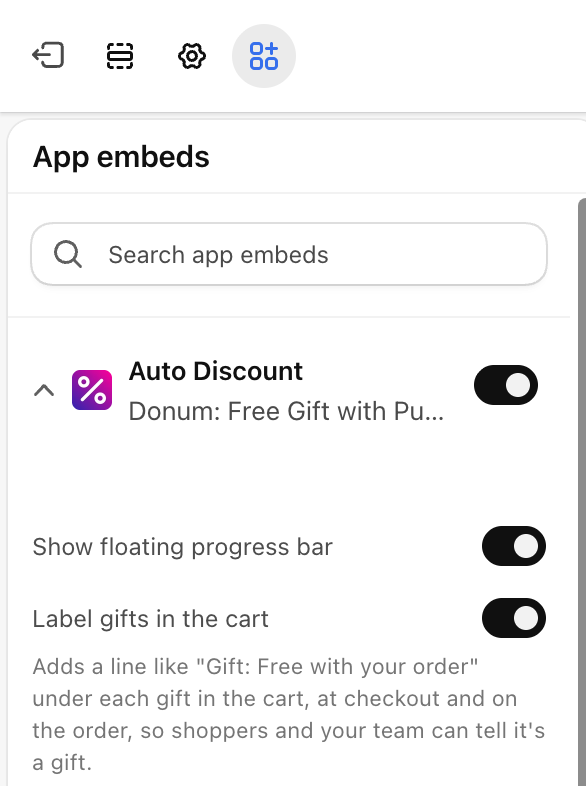
Make sure you’re editing your live theme. If you turn the embed on in a draft theme, it only works once you publish that theme.
In the app embed’s settings you can also change the progress color and corner radius, move the floating bar, and turn gift labels on or off.
3. Add the progress bar to the cart page (optional)
In the cart drawer, the app embed adds a progress bar by itself. If your store uses a cart page, add the bar there too:
- In the app’s Setup guide, click Add to cart page. Or open the cart page in the theme editor and click Add block.
- Choose Cart progress bar under Apps, and drag it where you want it, for example above the cart items.
- Click Save.
Other widgets, like the product page offer and the campaign countdown, are on the app’s Widgets page. They’re optional.
4. Check your store
The quickest check is Watch demo. It’s in the last step of the guide at the top of a new campaign, and under More actions in the campaign editor. The app opens an eligible product in your store, sets the quantity to just enough to qualify and adds it to the cart, so you see the gift arrive the way customers do. Afterwards, click Remove demo items in the bar at the top to put your cart back the way it was.
To test it yourself, open your store with the preview link:
- Test campaign: in the campaign list, click Preview next to it, or Open preview in the campaign.
- Live campaign: click View on store at the end of its row in the campaign list.
A bar at the top of the page tells you you’re in preview mode. Only browsers opened with the link see it, and only they see test campaigns. Now test it as a shopper would:
- Add a product. The progress bar should show how much more is needed for the next reward.
- Reach the threshold. For a free gift, the gift appears in the cart priced at $0, with a “Gift: Free with your order” label.
- Go to checkout. The discount should appear with your campaign name. You don’t need to complete the order.
- Remove a product to drop below the threshold. The gift should be removed, or it won’t be free at checkout.
When it all works, click Yes, it works in the preview bar. For a test campaign, click Go live in the app.
To let your team test too, click the copy button next to Preview in the campaign list and send them the link. Share it only with people you trust: anyone with the link can also use test campaigns at checkout.
If your store has a password, you can still test it. Enter the password from Online Store → Preferences.
Something not working?
- Click Something’s wrong in the preview bar and tell us what you expected. The report includes your theme and cart details, so we can look into it right away. We usually reply within 1 hour, and always within 24 hours.
- Nothing shows in the store: see Progress bar not showing.
- The discount doesn’t combine with another discount: see Why isn’t my discount combining?
- Anything else: email support@donum.studio. We’re happy to set up your first campaign with you.