
Campaign examples: setups you can copy
Updated
Each example below is a promotion stores often run with the app. It lists the campaign type to pick, what to fill in, and what shoppers see in the cart. Change the amounts and products to fit your store.
The Free plan runs one campaign at a time. Examples marked (Pro) need the Pro plan, but you can save them as a test and try them in your store on any plan. For how to create, test and launch a campaign, see Getting started.
1. A small gift, then a bigger one
“Spend $75, get a travel-size serum. Spend $150, get a full-size night cream instead.”
Campaign type: Free gift with purchase
- Under Condition, keep Customers qualify by set to Cart subtotal.
- Tier 1: enter
75as the Threshold, click Choose gifts and pick the travel-size product. - Click Add tier. Tier 2: enter
150and pick the full-size product. - Under When a higher tier is reached, choose Give only the highest tier’s gifts. To give both gifts at $150, choose Give the gifts of every reached tier instead.
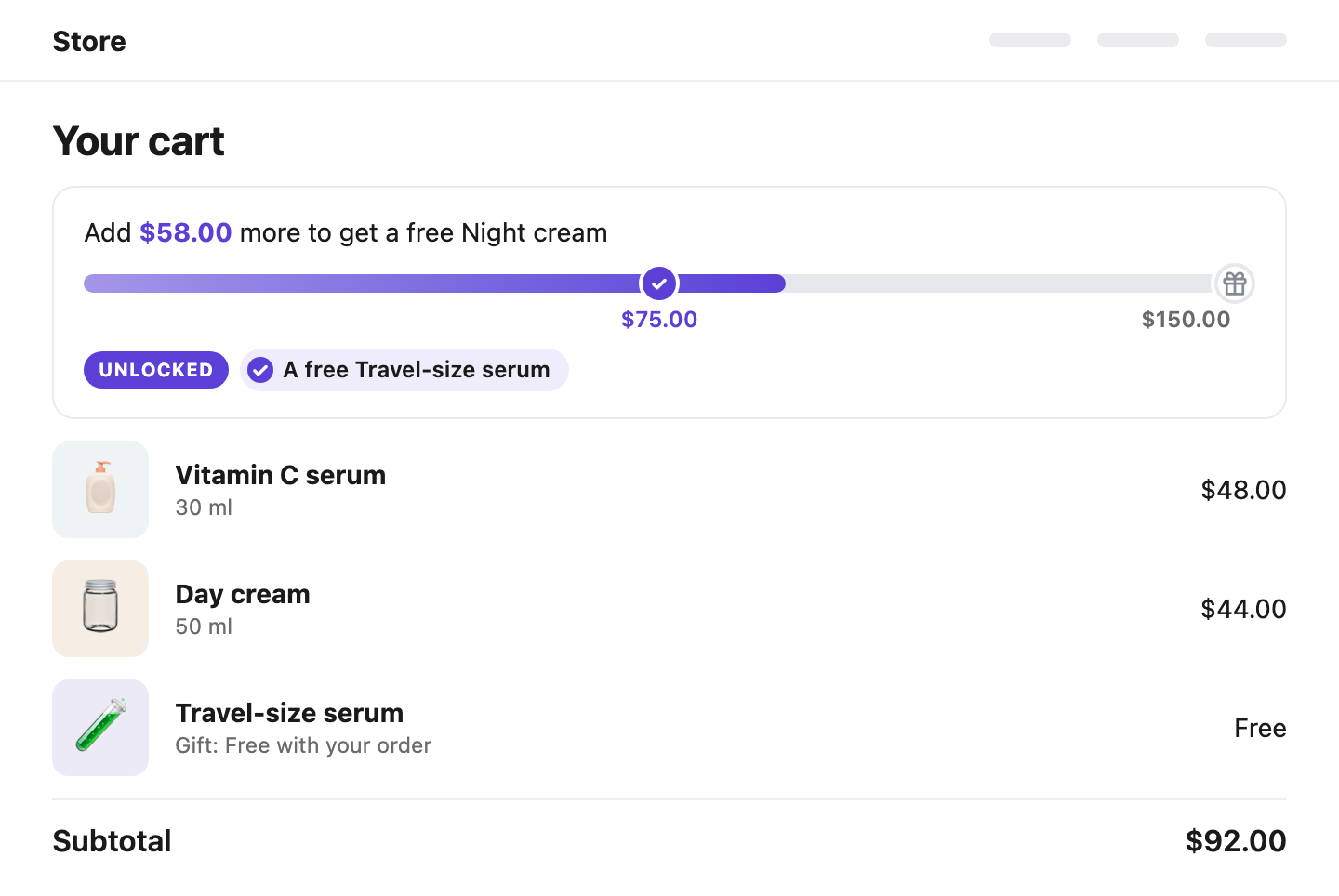
The gift is added to the cart automatically, priced at $0 and labeled as a gift. If the shopper removes products and drops below $75, the gift is removed too.
Tip: Set the first tier a little above your average order value. Most shoppers then need one more product to get the gift.
2. Free shipping, a gift and a discount on one bar
“Free shipping at $50, a free tote bag at $100, 10% off at $150.”
Campaign type: Cart goals
- Goal 1: threshold
50, reward Shipping discount,100% off. - Goal 2: threshold
100, reward Gift, and pick the tote bag. - Goal 3: threshold
150, reward Order discount,10%.
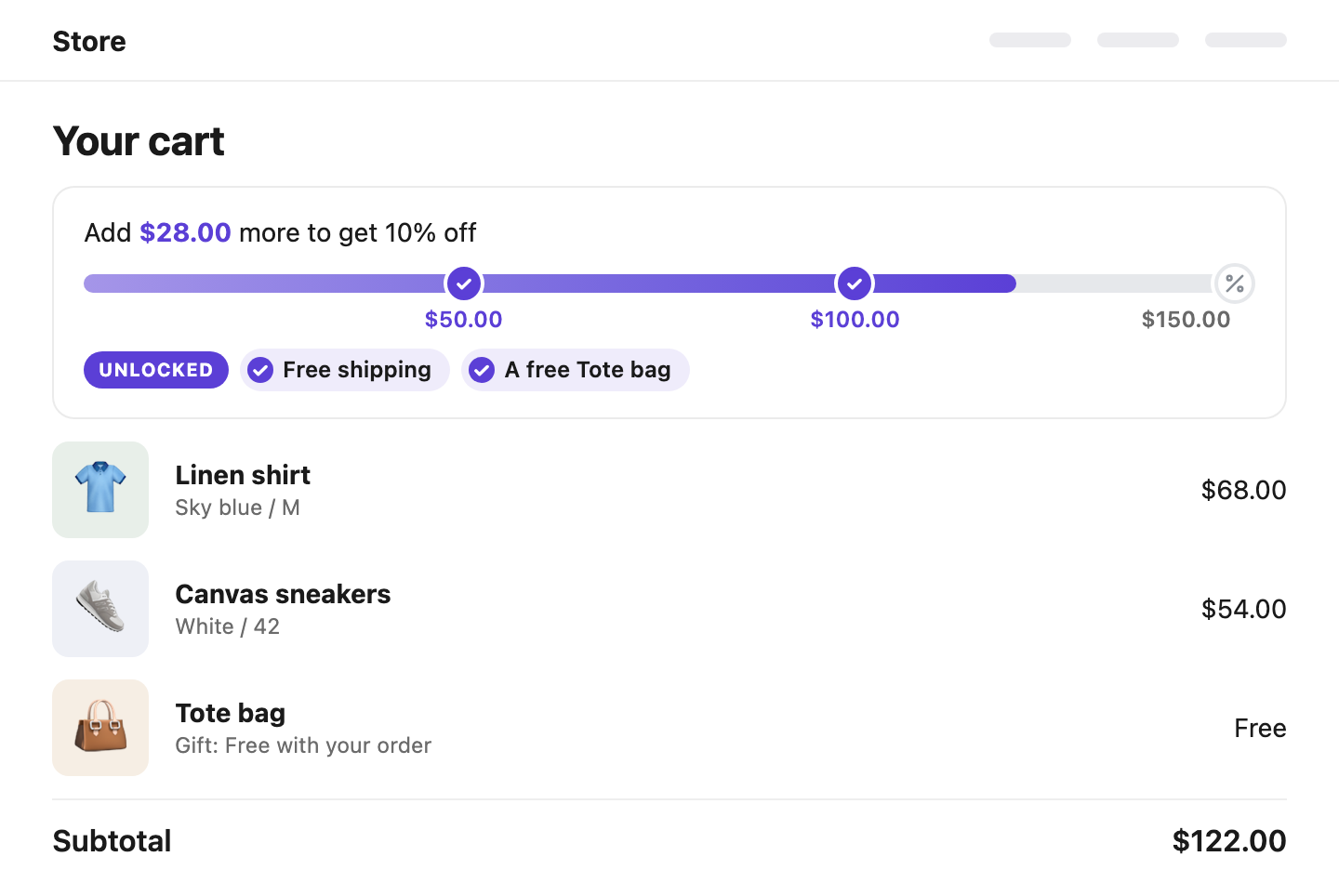
Goals already reached are kept, so a shopper at $150 gets all three, and one progress bar shows every goal.
On Pro, turn on Suggest products in the cart to reach the next reward under Storefront display, and the cart suggests products that close the gap.
3. An influencer code: buy 3, get 1 free
“Use code MATCHA4: for every 4 tins, the cheapest one is free.”
Campaign type: Buy X get Y
- Under Method, choose When a customer enters a discount code, and enter the code, for example
MATCHA4. - Under Condition, set Counting to Specific collections and add your matcha collection. Leave it at All products to include everything.
- Under Rule, set For every (items) to
4and Discounted items to1. Set Discount to Free and Apply to to Lowest-priced items.
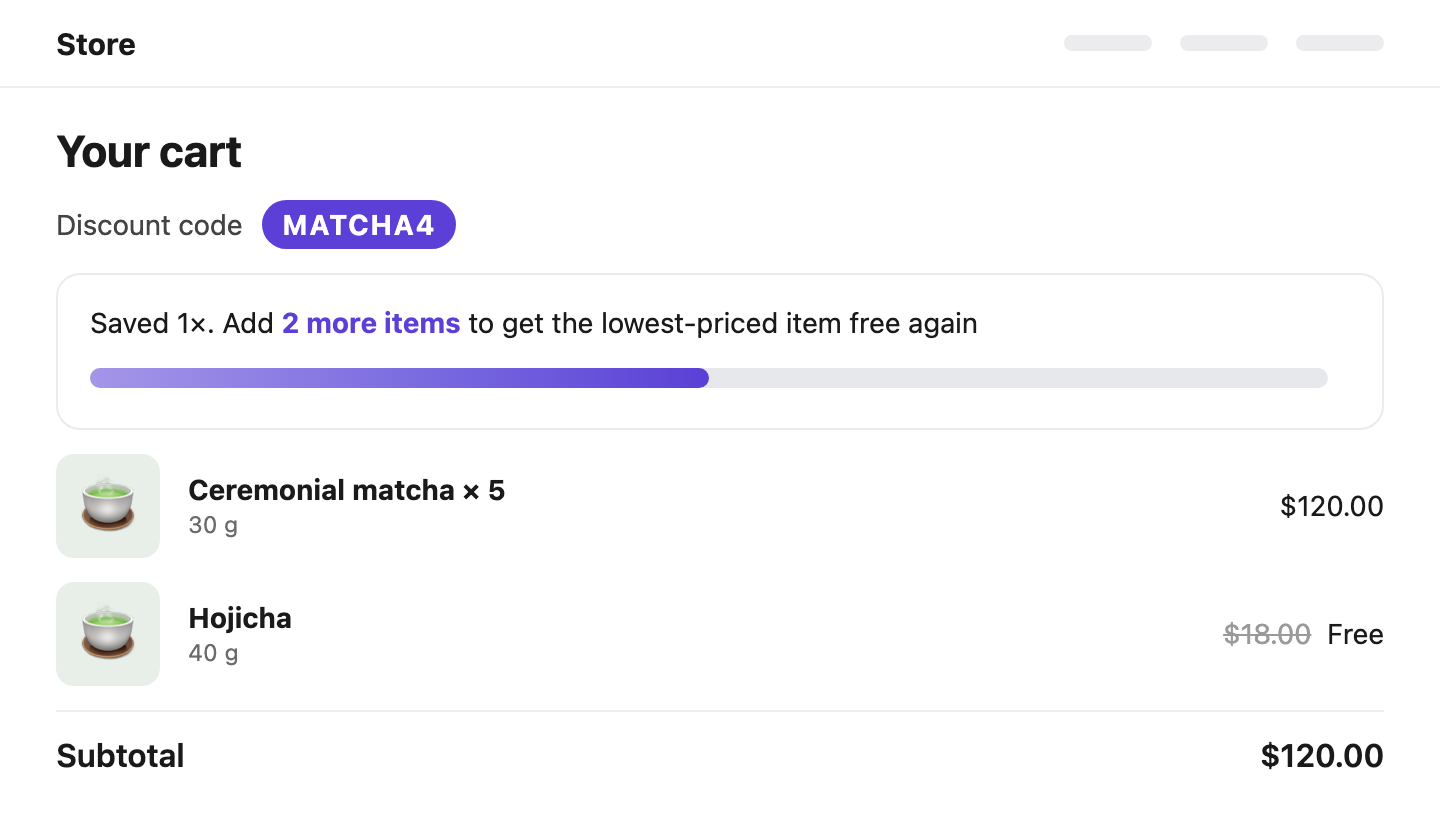
“Buy 3, get 1 free” means every 4 items, so enter 4, not 3. With 8 items, 2 are free. To cap it, tick Limit how many times it applies.
Send creators the Share link under the code instead of the code itself. Opening it applies the code to the cart, so the progress bar shows up right away. More in Give a free gift with a discount code.
4. Buy a specific product, get another one free
“Buy the cast iron pan, get a wooden spatula.”
Campaign type: Buy A get B
- Under Condition, click Add products and pick the pan. The threshold is already set to 1 item. To count only some variants, such as the 28 cm pan, expand the product in the picker and tick just those variants.
- Click Choose gifts and pick the spatula.
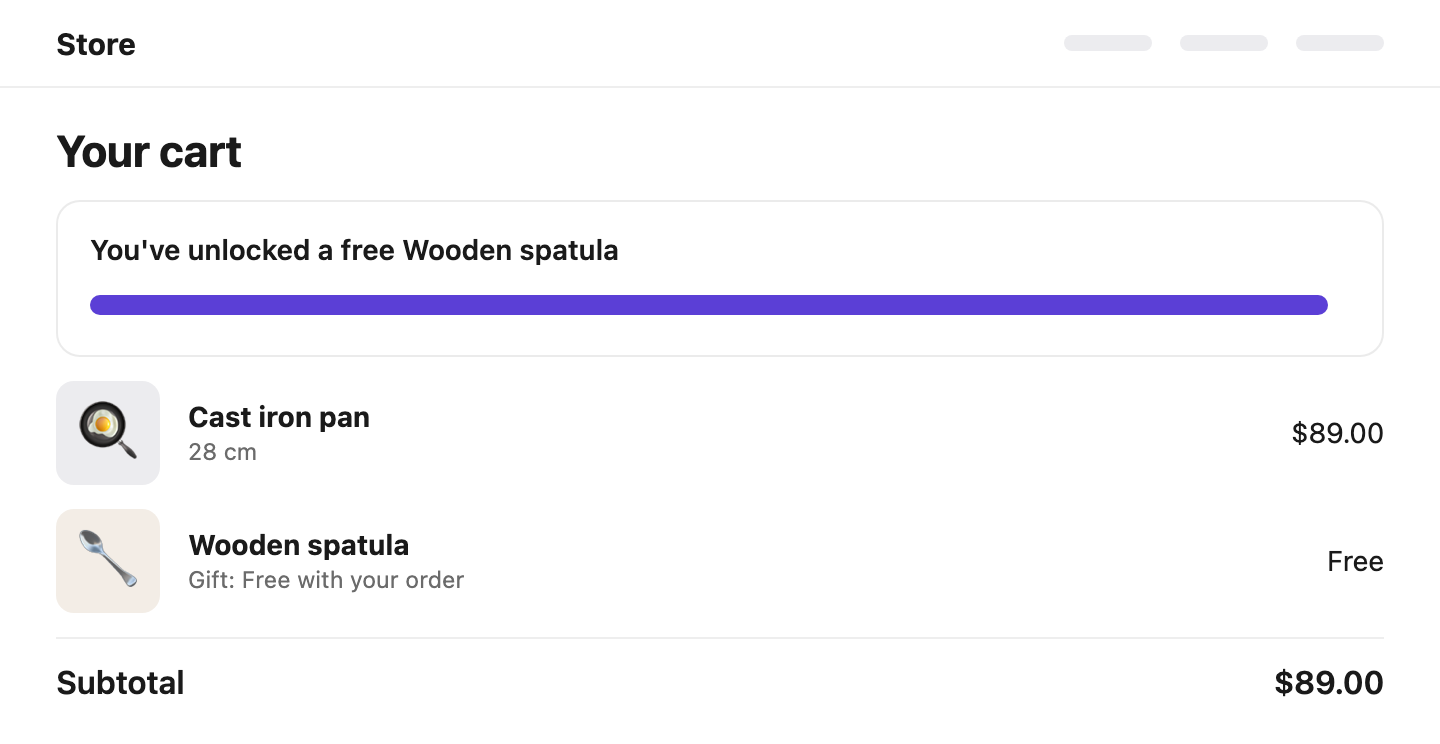
The spatula is your real product, so its stock goes down and it’s on the packing slip like any other item. You don’t need to create a separate $0 product.
Tip: Turn on Show in the product page offer block, and add the Product offer block from the Widgets page. The pan’s product page then says the spatula comes free, before it’s in the cart.
5. A welcome gift for first orders
“New customers get a free tote bag on orders over $40.”
Campaign type: Free gift with purchase
- Tier 1: threshold
40, and pick the tote bag. - Under Eligibility, choose New customers.
This works on the Free plan. A returning customer who’s logged in doesn’t see the campaign at all. A shopper who isn’t logged in sees the gift with Discount confirmed at checkout, and it becomes free once they enter an email that hasn’t ordered before. See Run a campaign for new customers or specific customers.
6. Let shoppers pick their gift (Pro)
“Spend $100 and choose a free gift: a tee in your size, a mug or a candle.”
Campaign type: Free gift with purchase
- Tier 1: threshold
100. Click Choose gifts and pick the tee’s sizes, the mug and the candle. - Under How gifts are given, choose Customer chooses from the selected gifts, and set Number of gifts the customer can choose to
1.
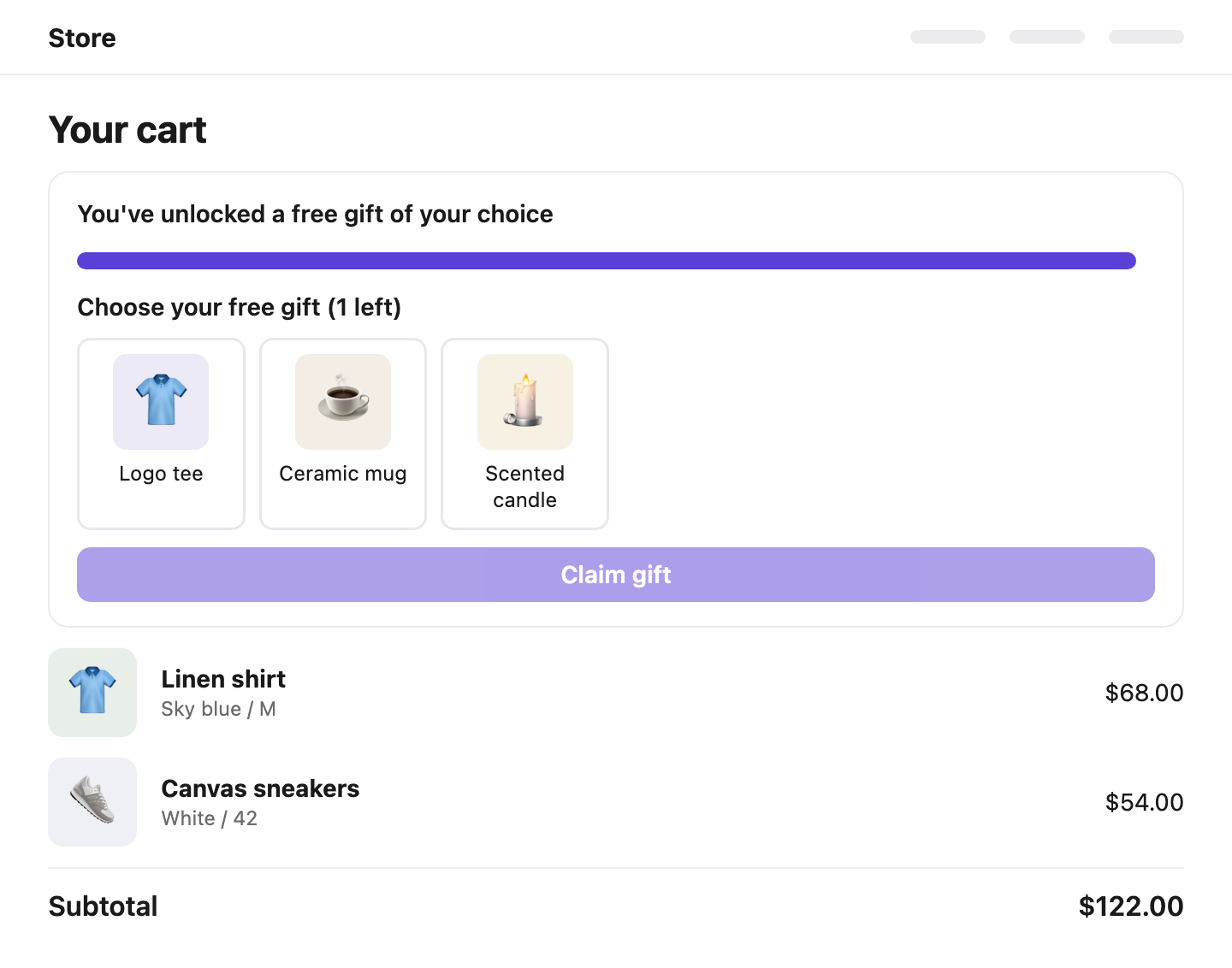
Sizes of the same product show as one card. Shoppers pick the size after choosing it, right in the cart.
7. An add-on at a special price (Pro)
“Spend $60, add an insulated bottle for $9.90.”
Campaign type: Purchase with purchase
- Enter
60as the Threshold. - Click Select products and pick the bottle.
- Under Customer pays, choose Special price and enter
9.90.
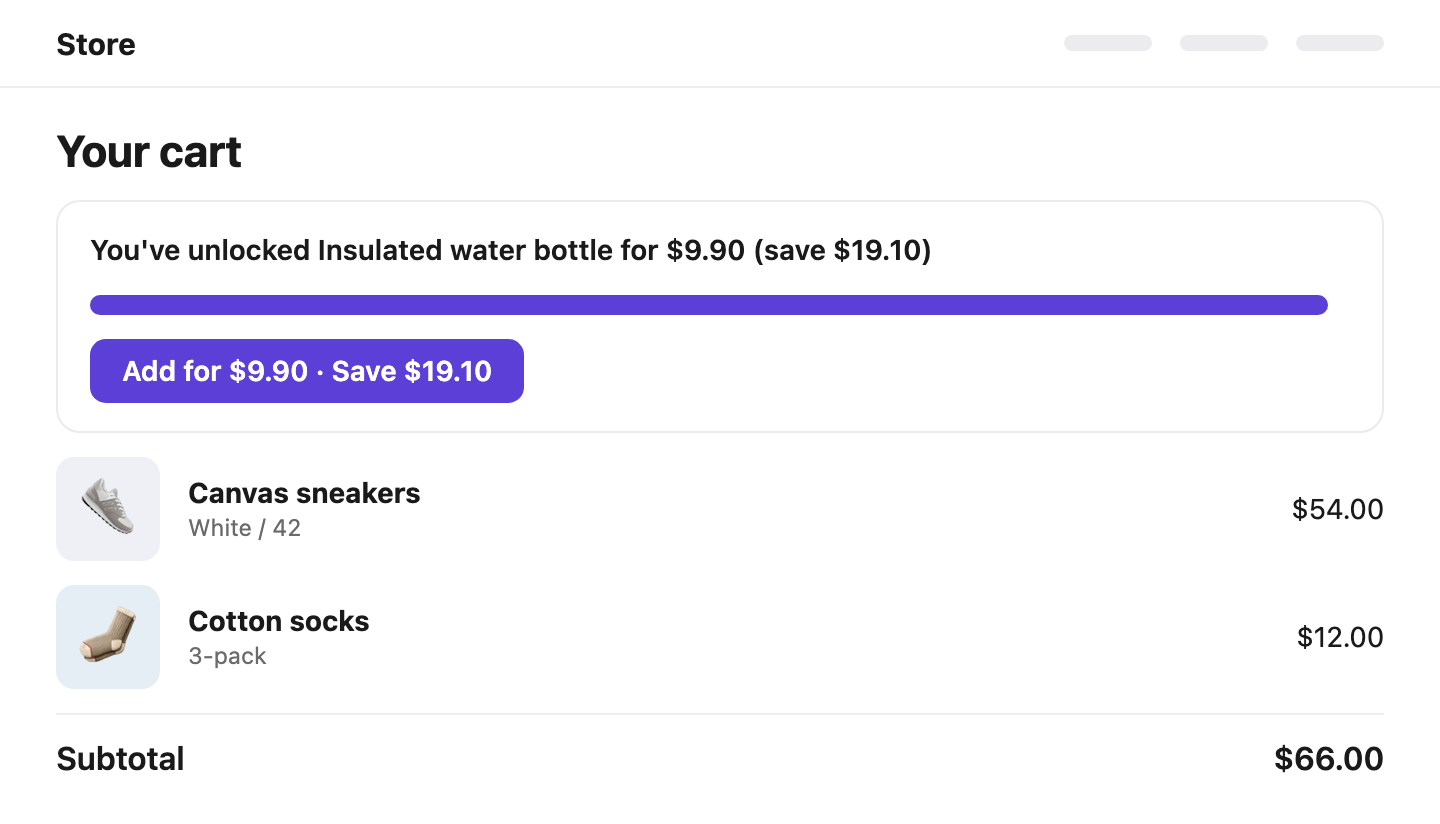
Unlike a gift, the add-on is never added on its own. Shoppers tap the button to add it. The button shows how much they save.
8. Buy more, save more
“10% off 2 items, 20% off 3 or more.”
Campaign type: Volume discount
- Tier 1: threshold
2items, discount10%. - Click Add tier. Tier 2: threshold
3items, discount20%. - Optional: under Counting, limit it to a collection, like your basics.
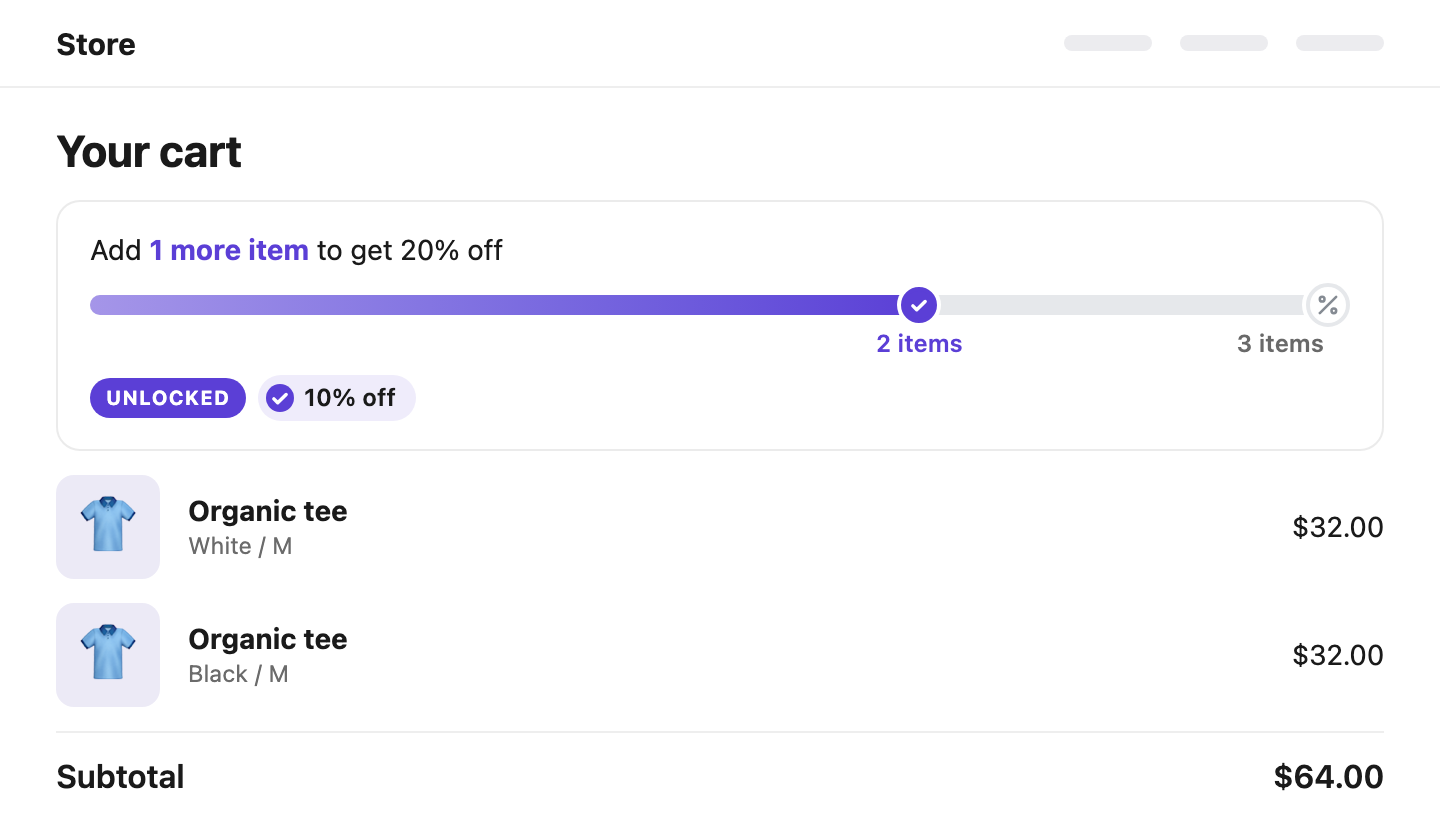
Only the highest tier reached applies, so 3 items get 20% off, not 30%.
9. A limited-time offer with a countdown
“Black Friday: free gift on orders over $75, ends Monday at midnight.”
Use any of the setups above, then:
- Under Active dates, set the start, then click Set end date. The campaign starts and ends on its own.
- Under Storefront display, turn on Show a countdown. To tease it before it starts, set Start counting down before the campaign starts to a few days.
- On the app’s Widgets page, add the Campaign countdown block, for example under the banner on your home page.
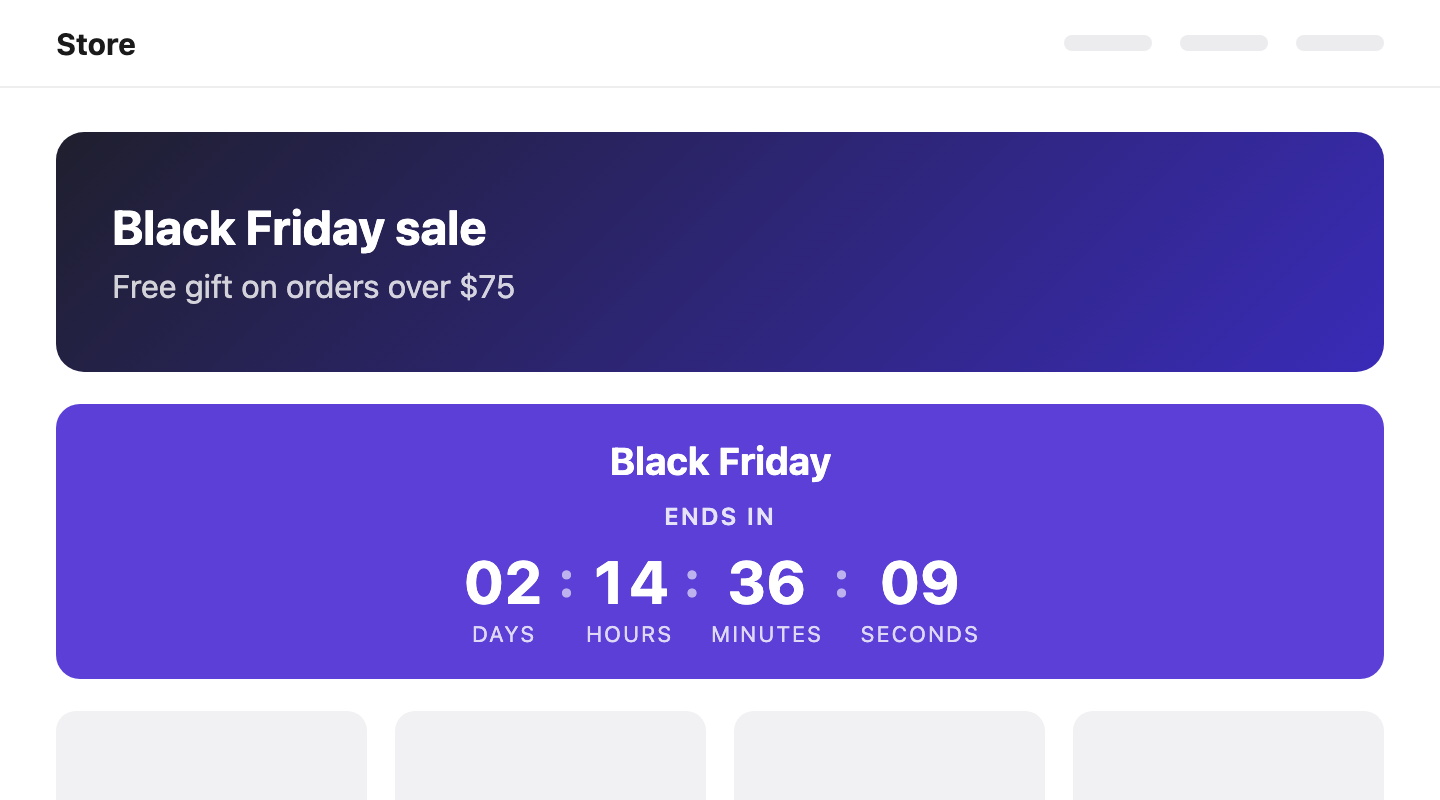
Before the start date the countdown shows the time until the sale starts. After it ends, the countdown disappears. Create the campaign early and click Save as test, so you can check everything with the preview link before the big day.
Need a setup that isn’t here?
Email support@donum.studio with what you’d like to run. We’ll tell you how to set it up, or set it up with you.